All-in-One PCs as Developer Workstations
A curved 27-inch all-in-one promises a quiet, cable-free desk and no tower humming under it. We put that promise to the test for everyday coding, and explain exactly where it holds — and where a traditional build still wins.
 David Mercer · Principal Software & Web Engineer
8 min read
Fact-checked
David Mercer · Principal Software & Web Engineer
8 min read
Fact-checked
Key takeaways
- For mainstream web, mobile and back-end work, a well-specified all-in-one PC for developers is a fully capable, quieter, tidier workstation.
- The non-negotiables are a modern multi-core CPU, 32GB of RAM and a fast NVMe SSD — get those right at purchase and most software work flows smoothly.
- A gently curved 27-inch panel reduces eye and neck travel across long lines of code; the effect is real but modest on a single 27-inch screen.
- Upgradeability is the main trade-off: expect to add RAM or swap storage, but treat the CPU and GPU as fixed for the machine's life.
- Keep a tower if you need a powerful discrete GPU, local AI training, heavy compilation or frequent hardware swaps; otherwise the all-in-one usually wins on value and desk space.
The first time I swapped a mid-tower out for an all-in-one on my own desk, the change I noticed was not benchmarks — it was silence and floor space. The hum under the desk was gone, the rat's nest of cables shrank to a single power lead, and the room felt about twice as large. That experience is exactly why the all in one PC for developers question keeps coming up among the engineers I talk to. People want to know whether a clean, integrated machine can really carry a full software workload, or whether it is a compromise dressed up as convenience.
The honest answer is: it depends entirely on what you build, and far less on the form factor than the marketing suggests. A modern all-in-one is, underneath the slim chassis, a laptop's components arranged behind a large desktop screen. That has real consequences for thermals and upgrades, but it also means today's chips are fast enough that the gap to a tower has narrowed dramatically for everyday development. For web apps, APIs, mobile front ends and most data work, the experience is indistinguishable from a tower in day-to-day use.
This article walks through what these machines are, where they shine, the specifications that actually matter, and the limits you should respect. By the end you should be able to decide, with confidence, whether the best all in one PC for programming belongs on your desk — or whether your particular workload demands something else. We will keep it practical and grounded in how developers really work, not in spec-sheet theatre.
What an all-in-one PC actually is
An all-in-one PC integrates the computer's components — processor, memory, storage, and often the power supply — into the same enclosure as the display. You get a single object that sits on the desk, plus a keyboard and mouse. There is no separate tower, no second box, and typically just one cable running to the wall. The form factor has existed for decades, but recent generations have become genuinely competent for serious work rather than being relegated to reception desks and family kitchens.
The trade-off baked into the design is space. To fit everything behind a thin panel, manufacturers use mobile-class or low-power desktop components and compact cooling. That is the central fact to keep in mind throughout this article: an all-in-one is closer in engineering terms to a high-end laptop with a big screen than to a desktop tower. Understanding that framing makes every later decision — about CPU choice, RAM, thermals and upgrades — far easier to reason about.
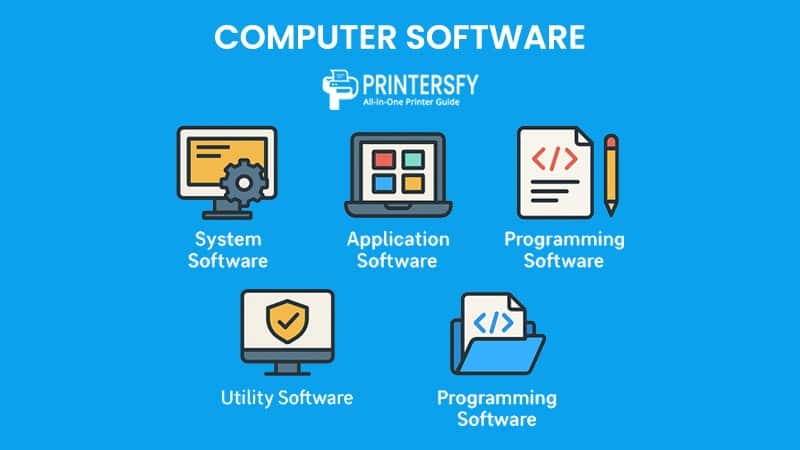
If you want a broader grounding in how the software you run actually sits on top of this hardware, our explainer on system, application and programming software is a useful companion. It clarifies why the operating system, your toolchain and your editor each place different demands on the machine underneath them. The hardware is only ever half of the story; the workloads it hosts are the other half.
The case for all-in-ones as dev workstations
The strongest argument for an all-in-one is not raw speed; it is the quality of the working environment. A tidy desk is not a vanity concern. When your peripheral vision is not cluttered with cables and boxes, and the room is quiet, you stay in flow longer. For knowledge work that depends on sustained concentration — and few tasks demand more sustained concentration than debugging a subtle race condition — the environment is part of the toolchain.
There is also a real value story. Because the display, computer and often the webcam and speakers come as one engineered unit, you are not assembling a tower, buying a separate monitor, and hunting for a webcam that does not look like it was made in 2009. For a solo developer or a small studio kitting out several desks, the predictable, all-included package reduces both cost and decision fatigue. The same logic that makes a well-chosen software solution attractive — one coherent thing that just works — applies to hardware too.
From the bench. When we moved two of our front-end engineers onto curved all-in-ones for a quarter as an experiment, the feedback was consistent and a little surprising: nobody missed the tower's horsepower for day-to-day React, TypeScript and CSS work, but everyone commented on the calmer desk and the lower fan noise during long pairing sessions. The only request that came back was for more RAM — which we fixed the same week through the access panel.
Energy use is a quieter benefit worth naming. All-in-ones built on low-power components tend to draw less electricity than a comparable tower-plus-monitor pairing, and many ship with efficiency certifications. The U.S. ENERGY STAR program for computers publishes criteria for computer energy efficiency, and choosing a certified model is a small, defensible way to cut both running costs and the carbon footprint of a desk that runs eight or more hours a day.
Performance: CPU, RAM and storage for development
Here is where buying decisions are won or lost. The three specifications that govern how a development machine feels are, in order of impact: the CPU, the amount of RAM, and the speed of the storage. Get these right and the form factor barely matters for mainstream work. Get them wrong and even a tower will frustrate you.
CPU
Compilation, bundling, test runs and language servers are all CPU-bound, and most of them parallelise across cores. A modern multi-core processor — eight performance-capable cores or more — handles a large monorepo, a hot-reloading dev server and a couple of containers without breaking a sweat. The current generation of efficient laptop-class chips that all-in-ones use is genuinely fast; the days when "mobile CPU" meant "slow" are behind us for everything short of sustained, hour-long compile jobs.
RAM
If I could give one piece of advice to anyone speccing a developer machine in 2026, it would be this: buy more memory than you think you need. A browser with thirty tabs, an IDE with its indexer running, a local database, a Docker stack and a design tool open at once will happily consume 16GB and start swapping. 32GB is the sensible floor for a comfortable developer workstation setup 2026, and 64GB is worth it if you run virtual machines or large local language models. Memory is the upgrade most all-in-ones still allow, so it is the one spec you can fix later — but it is far less painful to order it correctly up front.
Storage
Use an NVMe SSD, full stop. Spinning disks have no place in a development machine. Cloning a large repository, installing node modules, indexing a project and launching containers all hammer storage, and NVMe makes these operations feel instant. Aim for at least 1TB; codebases, container images, virtual machine disks and design assets fill a drive faster than most people expect. Where the all-in-one allows it, the SSD is usually the second component you can swap or supplement after RAM.
Tip. Before you buy, find the model's service manual or teardown and confirm exactly which components are user-accessible. The difference between a machine where you can pop a panel to add a memory stick and one that is glued shut is the difference between a five-year workstation and a two-year one. This single check has saved more than one engineer I know from a poor purchase.
What about the GPU? For web and application development, integrated graphics drive a high-resolution display comfortably and that is all most of us need. If your work involves training models locally, real-time 3D, game engines or GPU-accelerated video, the integrated graphics in an all-in-one will hold you back — and that is the clearest signal that you want a tower instead. We dig deeper into where machine learning genuinely needs local horsepower in our guide to what every developer should actually know about AI in 2026.
The curved 27-inch screen for coding
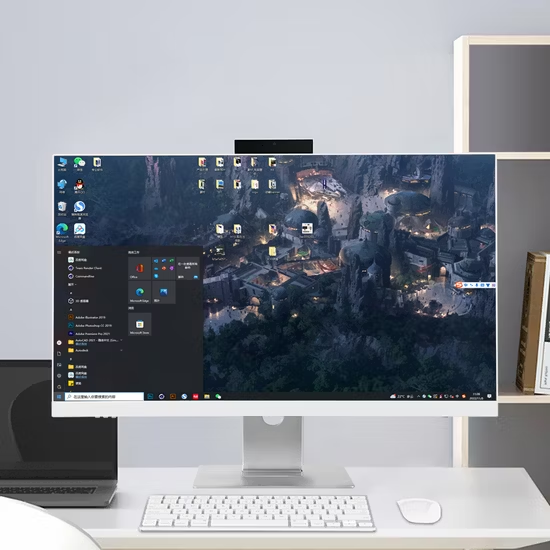
Screen quality matters more to a developer's day than almost any other component, because you stare at it for every working hour. A 27-inch panel at a high resolution gives you room for an editor, a terminal and a browser side by side without squinting, and it is the size that has quietly become the default for a comfortable curved monitor workstation.
The curve itself is the part people are most sceptical about, and the honest assessment is nuanced. A gentle curve keeps the left and right edges of the panel at a more consistent distance from your eyes than a flat screen does. On a single 27-inch display the benefit is real but modest — you notice it most at the far ends of very long lines of code and in side panels like a file tree or a debugger. The effect becomes far more pronounced on wider 34-inch ultrawides, where a flat panel forces your eyes to refocus across a meaningful distance. On a flat 24-inch monitor, by contrast, a curve would be pointless.
Beyond the curve, prioritise resolution, a matte or low-reflection finish, and a panel type with good viewing angles. Text rendering is what makes or breaks a coding display, and a sharp, high-pixel-density screen reduces the subtle eye strain that accumulates across a day. The way fonts and layouts actually reach the pixels you read is itself a craft built on semantic HTML and web standards from MDN Web Docs; if that side of the work interests you, our web development fundamentals, clearly explained piece is a good next read.
Legibility is an accessibility question too
A display you read all day is also a reminder that contrast, brightness and readable defaults are not just personal comfort — they are accessibility. The same instincts that make text legible on your own screen make the products you ship legible for everyone, and there is no shortcut for getting it right. If you have ever been tempted by a quick bolt-on fix, our piece on the trouble with accessibility overlays explains why genuine, built-in legibility always beats a band-aid.
Ergonomics, desk space and cable management
Ergonomics is where the all-in-one quietly earns its keep, and also where its one genuine weakness lives. The weakness first: because the screen and the computer are one object, the display's height and tilt are constrained by whatever stand the manufacturer ships. A fixed or limited stand can sit the screen too low, pulling your neck down for hours. Check the stand's adjustment range before buying, and confirm whether the unit supports a VESA mount so you can attach a proper monitor arm. A monitor arm transforms the ergonomics and frees the desk surface underneath entirely.
The strength is everything else. One cable to the wall means no tangle to manage, no dust trap of a tower to vacuum around, and a desk you can actually wipe clean in one pass. Cable management — usually a chore — simply evaporates. For anyone who works from a home office, a shared space, or a desk that doubles for other tasks, that simplicity is a daily, tangible benefit rather than an abstract one.
Watch out. A surprising number of all-in-ones ship with a stand that tilts but does not raise. If you are tall, or you simply care about your neck over a ten-hour day, verify height adjustment and VESA-mount support before buying. The most capable machine in the world is a poor workstation if it forces you to look down at it all day.
Treat the rest of the ergonomic stack as separate, deliberate choices: a mechanical or low-profile keyboard you enjoy typing on, a mouse or trackball that suits your hand, and a chair that supports a full day. The all-in-one solves the screen-and-computer problem elegantly; it does not absolve you of getting the seating and input devices right. A tidy machine on a badly set-up desk is still a badly set-up desk.
The limits: upgradeability and thermals
Every honest hardware article has to spend real time on the downsides, and the all-in-one has two that matter. The first is upgradeability. The second is heat.
Upgradeability
On a tower, almost everything is replaceable — you can drop in a new GPU in three years, add drives, even change the motherboard. On an all-in-one, the CPU and GPU are typically soldered or proprietary and effectively fixed for the life of the machine. RAM and storage are often accessible through a panel, but not always. The practical rule is simple: buy the processor and graphics you need on day one, because you will live with that choice, and treat memory and storage as the components you might upgrade later.
There is a related risk worth naming: a single fused unit means a single point of failure. If the screen dies on a tower, you swap the monitor; if the screen dies on an all-in-one, the whole machine goes in for service. Weigh that against the convenience and consider it part of the price of the form factor.
Thermals
Compact cooling means that under a sustained, heavy load — a long compile, a marathon test suite, video encoding — an all-in-one will reach its thermal limit and throttle, trading clock speed for safe temperatures, sooner than a roomy tower with large fans. The engineering bodies that define the electrical and thermal envelopes these chips must live within, such as the IEEE, are precisely why a thin chassis cannot break the laws of heat dissipation. For bursty development work, where the CPU spikes and then idles, this rarely bites. For continuous heavy workloads it can become the bottleneck. Be realistic about which camp your work falls into; most web and application development is bursty, which is exactly why all-in-ones suit it so well.
None of this is a reason to dismiss the form factor — it is a reason to match the machine to the workload, which is the same disciplined thinking behind our guide on how to choose the right software solution. The right tool is the one fitted to the job, not the one with the biggest numbers on paper.
All-in-one vs. tower vs. laptop-and-dock
Most developers are really choosing between three setups: an all-in-one, a traditional desktop tower with a separate monitor, or a laptop plugged into a dock and external screen. Each has a clear sweet spot. The all in one vs desktop tower debate in particular tends to generate more heat than light, so here is a grounded comparison across the factors that actually decide the matter.
| Factor | All-in-one | Desktop tower | Laptop + dock |
|---|---|---|---|
| Peak performance | High for mainstream work | Highest, especially GPU | Good, throttles under load |
| Upgradeability | RAM and storage only, usually | Fully upgradeable | Very limited |
| Desk footprint | Smallest, one cable | Largest | Small, but cables at the dock |
| Noise & thermals | Quiet; can throttle under sustained load | Coolest, can be made silent | Noisiest under load |
| Portability | None | None | Full — take it anywhere |
| Best for | Tidy, capable fixed desk | Power users, GPU work, upgraders | People who move between places |
Read the table as a decision tree rather than a scoreboard. If you never carry your machine and your work is mainstream development, the all-in-one gives you the cleanest desk for the least fuss. If you need a serious GPU, plan to upgrade parts, or run continuous heavy loads, the tower remains the right call. If you genuinely move between home, office and elsewhere, a laptop and dock buys portability at the cost of some sustained performance and most upgradeability. There is no universally correct answer — only the one that fits how you actually work, the same principle behind our wider complete guide to modern web development and design.
Who should buy one — and who should not
Let me make this concrete, because the abstractions only get you so far. An all-in-one is an excellent buy if you are a web developer, a mobile or front-end engineer, a back-end or full-stack developer working with containers and cloud services, a technical writer or someone doing the kind of document and content engineering we cover in our look at RTF to XML document conversion, or a small studio that wants several clean, consistent desks without building towers. For all of these, the machine disappears into the background and lets the work happen — which is exactly what good hardware should do.
You should think twice, and probably choose a tower, if your daily work involves training machine-learning models locally, real-time 3D or game-engine development, GPU-accelerated video rendering, or if you simply value the freedom to upgrade individual components every year or two. These needs map directly to the all-in-one's two weak spots — fixed graphics and limited upgradeability — and fighting the form factor on its weakest ground is a poor trade. The discipline of putting capable tooling at the centre of your stack, hardware included, is something we explore in putting AI at the core of your stack, carefully.
If you have read this far and you build software for the web, the practical conclusion is reassuring: a well-specified curved all-in-one is not a compromise, it is a deliberate, sensible choice that buys you a quieter, cleaner, more pleasant place to work. Spec the CPU and RAM generously, confirm what you can upgrade, mount it at the right height, and it will serve you well for years. For more in this vein you can browse all articles in the journal or read a little about how we test and review the tools we write about.
Frequently asked questions
Are all-in-one PCs good for programming?
Yes, for most everyday programming a well-specified all-in-one is excellent. A modern multi-core CPU, 32GB of RAM and a fast NVMe SSD handle web, mobile and back-end work comfortably. The bottlenecks appear only with heavy local game engines, large machine-learning training or many virtual machines, where a tower with a discrete GPU still wins.
Can you upgrade an all-in-one PC?
Partially. Many all-in-ones let you add RAM and swap the SSD through an access panel, but the CPU and GPU are usually soldered or proprietary and cannot be changed. Buy the processor and graphics you need on day one, then plan to upgrade memory and storage later. Always check the service manual before purchase.
Is a curved screen good for coding?
A gentle curve on a 27-inch panel is genuinely pleasant for coding. It keeps the edges of long lines and side panels closer to a consistent viewing distance, which reduces eye travel and neck movement across a workday. The benefit grows on wider 34-inch ultrawides; on a flat 24-inch monitor the effect is negligible.
All-in-one or a tower for software development?
Choose an all-in-one for a clean, quiet, space-saving setup when your workloads are mainstream development. Choose a tower when you need a powerful discrete GPU, frequent hardware upgrades, heavy compilation or local AI training. For most web and application developers the all-in-one is the more sensible everyday machine; specialists should keep the tower.
Sources & further reading
- ENERGY STAR — Computers — Official U.S. energy-efficiency criteria and certified product listings for desktops, all-in-ones and laptops, useful for comparing the running cost of a developer workstation.
- IEEE — The professional body behind many of the computing and interconnect standards underpinning modern hardware, and a respected source for engineering research and technical guidance.
- MDN Web Docs — Mozilla's authoritative reference for web technologies, including how text, layout and rendering behave on screen — directly relevant to evaluating a coding display.